How to Build a Blog Site with Hugo and Vercel

This is a step-by-step guide to building and deploying a blog site with Hugo and Vercel. Let's get started!
1. Install Hugo
Installing Hugo on Linux
If your distribution supports snap:
snap install hugo --channel=extended
Or you can use apt-get:
sudo apt-get install hugo
Check if Hugo is successfully installed:
hugo version
If you get a response similar to the one below, Hugo is successfully installed:
hugo v0.105.0-0e3b42b4a9bdeb4d866210819fc6ddcf51582ffa+extended linux/amd64 BuildDate=2022-10-28T12:29:05Z VendorInfo=snap:0.105.0
If you are using Windows, follow this instruction: hugo-windows
2. Create a New Site
After installing Hugo, let's create your blog site:
- Open your terminal.
cdto your preferred working directory.- Create a new Hugo site with your chosen blog site name:
hugo new site blog-site
This will provide short instructions on how to add a theme and content to your site. We'll cover these steps in detail below.
Just a few more steps and you're ready to go:

1. Download a theme into the same-named folder.
Choose a theme from https://themes.gohugo.io/ or
create your own with the "hugo new theme <THEMENAME>" command.

2. Perhaps you want to add some content. You can add single files
with "hugo new <SECTIONNAME>/<FILENAME>.<FORMAT>".

3. Start the built-in live server via "hugo server".

Visit https://gohugo.io/ for quickstart guide and full documentation.
3. Use a Hugo Theme
Hugo makes it easy to add and manage themes for your site's UI/UX. Once you select a Hugo Theme, you can add it to your site using one of these two methods:
- Add the selected theme's Git repository as a
subtreeto your site (recommended if you want to follow updates from the theme's repository). - Manually download or clone the theme's Git repository into your site's
themesdirectory (use this if you are satisfied with the current version and don't need future updates).
For this guide, let's use m10c, a theme similar to this blog site.
cd  themes
git  clone  https://github.com/vaga/hugo-theme-m10c.git  ./m10c
4. Update the config.toml
Now, update your config.toml file to include:
- The theme you are using
- Author information
- Available menus
- Social media links, and more
Open your config.toml file and add the following information:
Remember to change the data to your own information.
languageCode  =  "en-us"
title  =  "Daniel's Blog"
theme  =  "m10c"

[[menu.main]]

identifier  =  "tags"
name  =  "Tags"
url  =  "/tags/"
weight  =  2

[[menu.main]]

identifier  =  "home"
name  =  "Home"
url  =  "/"
weight  =  1

[params]
author  =  "Daniel Demelash"
description  =  "The little things I know about software development."
avatar  =  "images/profile_pic.png"

#add avatar image
menu_item_separator  =  "|"
favicon  =  "images/favicon.ico"

#add favico image
[[params.social]]
icon  =  "github"
name  =  "GitHub"
url  =  "https://github.com/danielddemissie"

[[params.social]]
icon  =  "linkedin"
name  =  "Linkedin"
url  =  "https://linkedin.com/in/danielddemissie"

[[params.social]]
icon  =  "twitter"
name  =  "Twitter"
url  =  "https://twitter.com/danielddeme"
For this to work properly, you need to add the favicon and avatar images inside both the public/images and static/images folders, using the same file names.
5. Create Your First Post
Now it's time to add your first blog post. First, go back to the main directory and run this command:
cd  ..

hugo  new  posts/first-post.md
This command creates a posts directory with a file named first-post.md inside the content folder. When you open this file in your text editor, you'll see a line draft = true, which means the post is in draft mode. Add your content to this file and change draft = false. After saving your changes, run the following commands:
hugo
hugo  server
The hugo command will generate the necessary configuration and HTML files to render your site.
Start building sites …

hugo v0.105.0-0e3b42b4a9bdeb4d866210819fc6ddcf51582ffa+extended linux/amd64 BuildDate=2022-10-28T12:29:05Z VendorInfo=snap:0.105.0


| EN

-------------------+-----

Pages | 10
Paginator pages | 0
Non-page files | 0
Static files | 1
Processed images | 0
Aliases | 2
Sitemaps | 1
Cleaned | 0

Total in 94 ms
hugo server will start the application on port 1313 (if no other service is running on that port). Now that your blog site is up and running, open http://localhost:1313 in your browser.
6. Push to GitHub
Create a new GitHub repository with your site name and copy the repository URL.
Note: I rename the main branch from master to main simply because I prefer main.
git  init
git  add  -A
git  commit  -m  "START: first commit"
git  branch  -M  main
git  remote  add  origin  url-to-your-blog-repository
git  push  -u  origin  main
7. Deploy to Vercel
Vercel is a platform for frontend developers, providing the speed and reliability needed to create and deploy projects quickly. They also offer one of the best free (Hobby) account services.
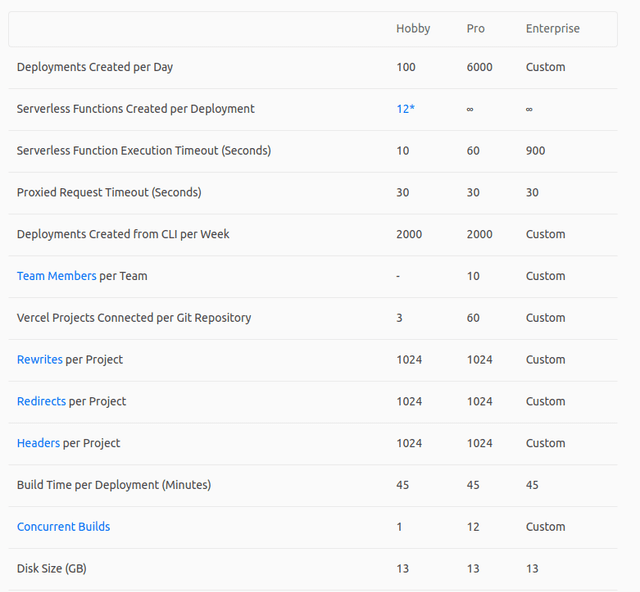
If you don't have a Vercel account, create a free account and then come back here.
Deploying your Hugo site to Vercel does not require any additional configuration. All you have to do is push the changes you want to deploy to the main branch of your project repository, and Vercel will automatically configure and deploy your Hugo site.
Let's deploy! First, make sure everything is saved, then run:
git  add  .
git  commit  -m  "DEPLOY: deploy to vercel"
git  push
Open your Vercel dashboard and add a new project

Import from Github
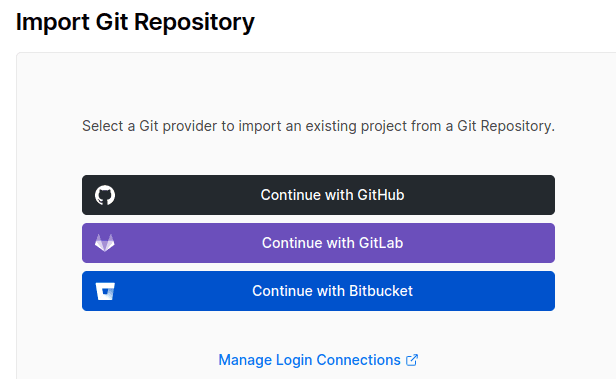
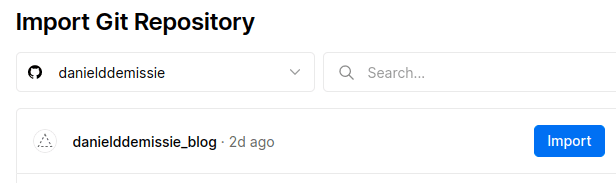
Select the project to deploy and click "Deploy"
Congrats 🎉 Your blog site is LIVE!
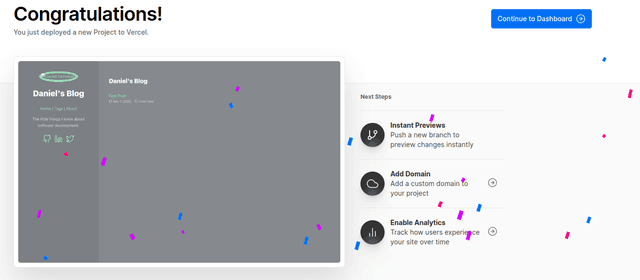
Now, whenever you make changes to the main branch, Vercel will automatically update your site.
I hope you found this post useful! If you have a few more minutes, check out another post 🤖